
Two-Factor Authentication
Two-Factor Authentication
Two-factor authentication adds an extra layer of protection to your account.
Once it is enabled, logging into the client will require your password and a code from your authenticator app. You will also get backup codes that you can use if you cannot access your app.
How to enable 2FA
Log into the website and go to your profile.
Scroll down to the
Two-Factor Authenticationsection.Enter your current password.
Click
Start setup.A QR code will appear.
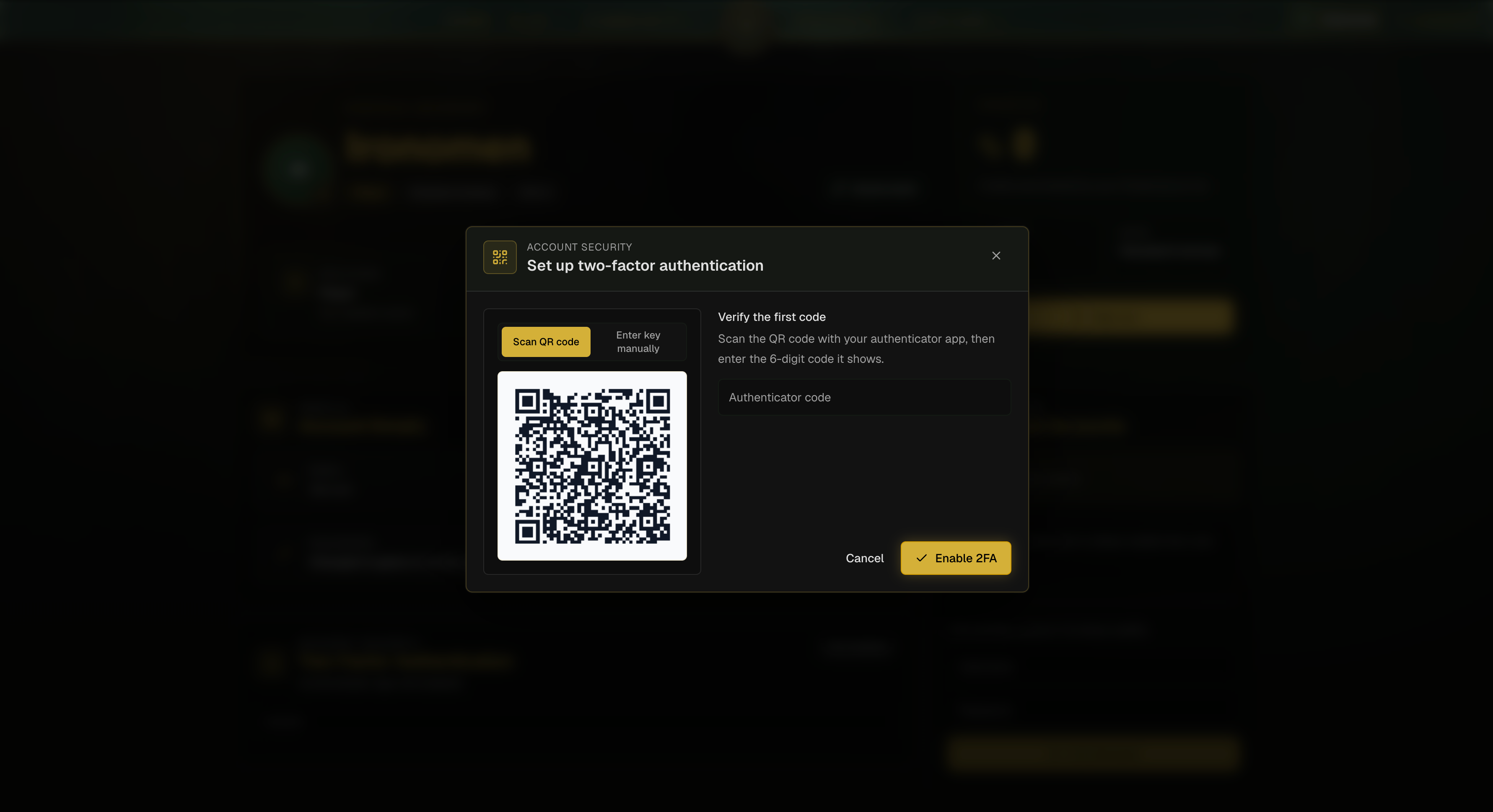
Open your authenticator app and scan the QR code.
If you do not want to scan it, you can use the manual setup key instead.
Enter the 6-digit code from your authenticator app.
Confirm the setup.
Once this is done, 2FA will be enabled on your account.
What changes when you log in
After enabling 2FA, logging into the client will take one extra step.
Enter your username and password as normal.
When prompted, enter the code from your authenticator app.
If the code is correct, you will be logged in.
If you do not have access to your authenticator app, you can use a backup code instead.
Backup codes
When you enable 2FA, you will be given backup codes.
These are one-time use codes that can be used instead of your authenticator code if needed. Keep them somewhere safe. If you lose access to your phone or authenticator app, these codes can help you get back into your account.
Important:
Each backup code can only be used once.
Treat them like passwords.
Do not share them with anyone.
How to regenerate backup codes
If you want a fresh set of backup codes, you can generate new ones from your profile page.
Go to your profile.
Open the
Two-Factor Authenticationsection.Enter your current password.
Enter a valid authenticator code.
Click
New codes.
This will create a new set of backup codes. Your old backup codes should no longer be relied on, so make sure you save the new set.
How to disable 2FA
If you want to turn 2FA off, you can do that from the same section on your profile page.
Go to your profile.
Open the
Two-Factor Authenticationsection.Enter your current password.
Enter either:
a valid authenticator code, or
a valid backup code
Click
Disable.
Once disabled, your account will no longer ask for an authenticator code on login.
Common issues
My code is not working
Make sure you are entering the current 6-digit code from your authenticator app. These codes refresh often, so if one expires, wait for the next one and try again.
I lost access to my authenticator app
Use one of your backup codes to log in or disable 2FA. If you do not have your backup codes, you will need to contact staff for help.
I scanned the QR code but setup will not finish
Make sure you entered your current password correctly when starting setup, then enter the latest code shown by your authenticator app.
Can I set it up again later?
Yes. You can disable 2FA and set it up again from your profile page if needed.